
Fixing ZIP Codes and Missing 0's in CSV/Excel
Often, certain fields (like ZIP Codes) display correctly in Report Toaster but do not export correctly to CSV/Excel.
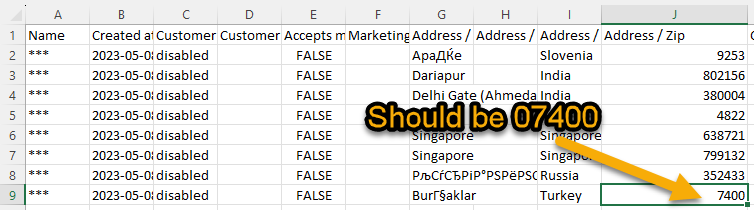
You may notice this problem when you open up the Excel file the field displays without the first 0s.
This happens because Excel tries to convert what it sees as a Number, rather than interpreting it as Text.
(click image to enlarge)
The solution is thankfully fairly straightforward.
1.) Open up a blank excel file (or simply open up Microsoft Excel and start a blank workbook).
2.) Go to the data tab, click 'From Text/CSV".
3.) Browse to your original file location (probably downloads) and click Import.
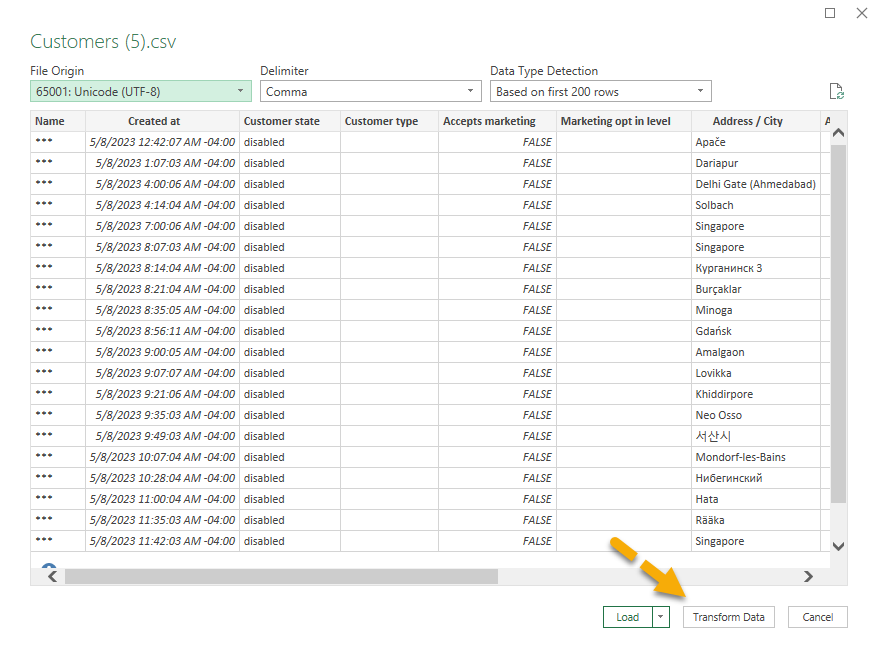
4.) A window should pop up that looks something like this:
 (click image to enlarge)
As you can see you have several options for selecting the File Origin text type and Delimiter (typically, we found UTF-8 and Comma work best, but feel free to adjust as needed).
Click the Transform data button at the bottom. This opens up the Power Query editor in a new window.
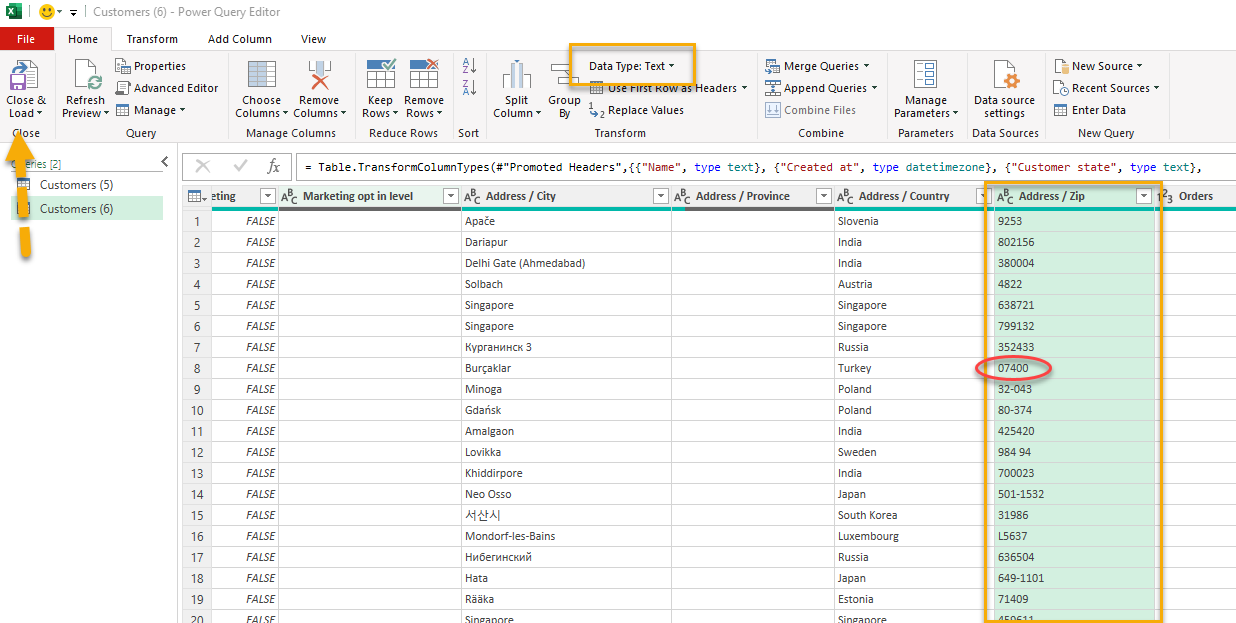
5.) From here, click the column header for the row in question (Address / Zip). Make sure Data Type: Text is selected in the menu at the top. Notice that now the ZIPs are formatted correctly with zeros at the beginning?
6.) Once you're happy with it, click Close & Load (top left). This will result in a correct excel file.
(click image to enlarge)
For more information about using Report Toaster, check out our FAQ or reach out to us at any time :)